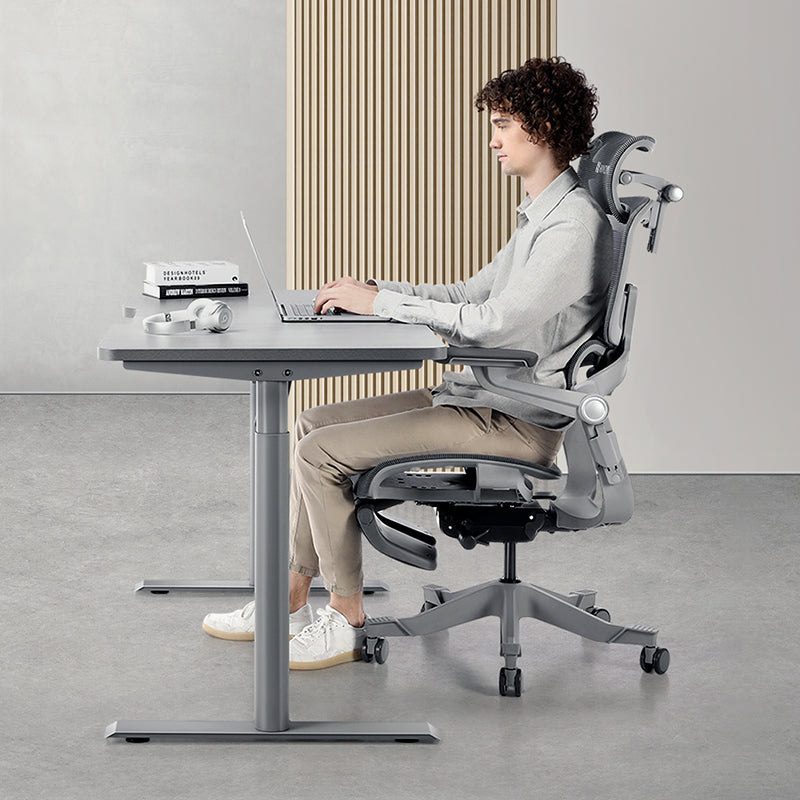


When your neck and shoulders ache after sitting, it's worth checking your whole setup, not just the headrest. Common things to look at are a seat that's too deep, armrests that lift your shoulders, a mouse too far from your body, and a screen that's too low or too far away. Work through them from the seat up to the screen, add regular position changes, and see whether long days feel easier.
Why check below your neck?
It's tempting to reach for the headrest first. That may not change much on its own, because what happens lower down can affect how you hold your head.
Here's one way it can play out:
- The seat's too deep, so your lower back may lose contact with the lumbar support.
- Without that support, you might lean your upper body forward.
- Leaning forward can change how you reach for the keyboard and mouse.
- Your head may drift forward to follow the screen.
Adjust only the headrest and the earlier steps stay as they were, so they're worth checking too.
Five setup checks
Armrests too high or too wide. Set too high, they can hold your shoulders in a slight shrug while you work.
A mouse parked far out to the side. Reaching for it means one arm works further from your body than the other, and some people notice it more on their mouse side.
Seat too deep. Your lower back may not reach the backrest, which can leave you leaning forward.
Screen too low or too far away. You may find yourself leaning forward and down to see it. Laptops flat on a table are the classic example: think of reviewing a pitch deck on a small screen at the dining table, chin creeping closer with every slide.
Holding one position too long. Even a well-tuned setup can feel stiff if you stay still for a long time.

A three-minute self-check
Before you change anything, find out which link's weakest:
- Type for 30 seconds. Do your shoulders creep up towards your ears?
- Use the mouse for 30 seconds. Does your elbow drift away from your side?
- Sit fully back. Does your lower back stay in contact with the lumbar support?
- Look at the screen. Does your chin edge forward?
Any "yes" is a good place to start.
What order should you adjust things in?
Work from the seat up. Each setting affects where the next one ends up, so this order makes adjusting easier:
- Seat height and depth. Feet flat, thighs roughly level, and a two-to-three-finger gap behind your knees.
- Lumbar support. Height first, then depth, so your lower back stays in contact. Our guide to lumbar height vs depth walks through this step.
- Armrest height and width. Raise them until they just meet your forearms with your shoulders relaxed and elbows at roughly 90 degrees. Bring them in so your elbows sit close to your sides.
- Keyboard and mouse. Pull both close enough that your elbows stay by your body, with the mouse right next to the keyboard.
- Screen height and distance. Top of the screen at or slightly below eye level, roughly an arm's length away and centred in front of you.
- Movement. Change position every 30 to 60 minutes.
You can raise the monitor first if that's easiest, but check the seat and armrests too.
Matching what you feel to what to change
Use this as a starting point for troubleshooting, not a diagnosis. The same feeling can come from different things.
| What you notice | Worth checking | What to try |
|---|---|---|
| Tight tops of the shoulders | Armrests slightly high, mouse too far out | Lower the armrests a step; pull the mouse closer |
| Ache on one side of the neck | Mouse reach, or screen off-centre | Bring the mouse in; centre the screen with your body |
| Shoulders tiring during long typing | Armrests too wide or keyboard too far | Narrow the armrests; move the keyboard closer |
| Neck ache mainly when reclining | Headrest position, or lumbar contact lost | Adjust headrest height and angle; recheck lumbar |
| Stiff neck after video calls | Whether you hold one posture or lean to one side | Sit back during calls; raise the camera to eye level |
How your kind of work can affect your setup
- Heavy typing, like writing code or drafting reports, makes armrest height worth checking, since your forearms are on them so much of the time.
- Mouse-heavy tasks such as design work or building slides keep one arm busy, so check the mouse distance on that side.
- Reading and review are a reason to check the screen isn't sitting below eye level.
- Close detail work, such as checking a dense financial model, can pull you towards the screen. A forward-tilt seat lets your hips follow the lean, which some people find more comfortable. Save the headrest for when you recline.
Neck and shoulders in the Singapore workday
A few everyday local habits are worth looking at alongside your chair.
- Phone on the MRT. You've probably seen it: commuters spend the whole ride looking down at a phone, then sit at a desk for the rest of the day. The Health Promotion Board's HealthHub article "Sit Up Straight, Darling" flags reading, texting or gaming with the neck bent for long periods as a poor posture habit. Hold the phone higher, nearer eye level, and give your neck a break for part of the journey.
- Laptops on hybrid days. Working from an HDB flat or condo often means a laptop flat on the dining table, screen well below eye level. Raise it on a stand or a stack of books and use a separate keyboard and mouse, or connect an external monitor on an adjustable arm such as the MovMax monitor arm.
- Cold air-con. If you're sitting right under a strong vent, your shoulders can tense up without you noticing. Move away from the direct airflow, or keep a light layer over your shoulders.
- Back-to-back calls. Long office hours and meetings across time zones can mean hours without leaving the chair. Use the start of each call as a cue: sit back, drop your shoulders, check the mouse and screen.
HealthHub's self-help tips for managing pain suggest changing your posture every 30 minutes and taking frequent breaks, which fits neatly with that reset habit. Our five easy desk exercises are a simple way to use those breaks.
Stretching helps, but it isn't the whole answer
Stretching can loosen stiffness in the moment. If the setup hasn't changed, though, the same stiffness may come back. A pricier chair or a headrest tweak may not do it alone either. Setup, support and regular position changes work together, and stretching sits alongside them, not instead of them.
Which chair features make a good setup easier to hold?
A chair can't replace a good setup, but the right adjustments make it easier to keep. For neck and shoulders, look closely at armrests and headrest. Here's how the Hinomi range handles them:
- Q2, our "Best Value Ergonomic Chair": a 4D headrest that adjusts in height, depth, support tilt and surface angle, plus flip-up armrests with leather pads.
- Q2 Pro ("Softer Comfort, Petite-Friendly Fit"): the same 4D headrest with a lower headrest position, which can help if headrests usually sit too high for you.
- H2 Classic: 4D armrests that move in height, width, depth and angle, so you can bring them in close to your sides, plus a latex-filled 3D headrest (height, pivot and surface angle).
- H2 Pro, our "Most Versatile Ergonomic Chair": BiPivot 5D armrests (five directions of adjustment) that also flip up 95°, a 3D headrest (depth, pivot and surface angle), and an upper backrest that tilts 10° forward to stay with you as you lean in.
- X2 Pro, "Best for Comprehensive Back Support": BiPivot 6D armrests (six directions of adjustment, including 360° rotation), a 3D headrest (height, pivot and surface angle) and a 4-panel backrest.
Not sure which suits the way you work? Our practical framework for choosing a Hinomi chair breaks it down by work style and body size.
Frequently asked questions
Should armrests be up or down if my shoulders hurt?
Neither extreme. If they're too high, they can push your shoulders into a shrug; if they're too low, your arms may hang without support. Aim for a height where your forearms rest lightly, elbows at roughly 90 degrees and shoulders relaxed, with the armrests close enough that your elbows stay near your sides.
How high should my monitor be?
Put the top of the screen at or slightly below eye level, roughly an arm's length away and centred in front of you, so you aren't tilting your head down or pushing your chin forward to read. On a laptop, raise it on a stand and use a separate keyboard and mouse, or add an external monitor on an adjustable arm.
Does using my phone on the MRT add to neck strain?
It can. Looking down at a phone for a long ride keeps your neck bent, and if you then spend the day at a desk with a low screen, your neck may rarely get a break. Hold the phone closer to eye level, look up between messages, and keep your desk setup neutral so the commute isn't followed by more of the same.
When should I see a physiotherapist for neck and shoulder pain?
See a doctor or physiotherapist if the pain persists or keeps returning after you've adjusted your setup, or if it comes with numbness, tingling or weakness spreading into the arm. HealthHub lists symptoms like these among those needing prompt medical review. A physiotherapist can assess what's going on, recommend specific exercises and advise on your workstation.
Can I try Hinomi chairs in Singapore before buying?
Yes. Our showroom at 12 Kallang Avenue, #03-01, Aperia Mall is open daily from 11am to 8pm, near Lavender MRT (EW11, Exit B) and Bendemeer MRT (DT23, Exit B). You can try different chairs and ask our staff to help you set armrest height, lumbar support and headrest position for your body.
Three steps to start with
- Start with the seat today. Reset seat height, seat depth and lumbar support so your back stays against the chair. If your lower back's part of the picture too, our guide to lower back pain after long sitting covers what to adjust first.
- Then bring the armrests and mouse in. Lower the armrests until your shoulders drop, narrow them, and park the mouse right beside the keyboard.
- Raise the screen this week, and keep moving. Get the top edge to eye level, whether that's a monitor arm, a laptop stand or a stack of books, and change position every 30 to 60 minutes.
If your current chair can't adjust armrest height, seat depth or lumbar support, you're welcome to try the range at our showroom at Aperia Mall and get fitting advice from the team. Delivery's free in Singapore, and you've got 30 days to return a chair if it doesn't suit you.